> ## Documentation Index
> Fetch the complete documentation index at: https://docs.thickdot.com/llms.txt
> Use this file to discover all available pages before exploring further.
# Review Documents and Approve or Reject Goods Receipts
> Use the Document Details page to inspect AI extractions, correct misreads inline, and approve or reject goods receipts with a full audit trail.
The Document Details page gives you complete visibility into everything the AI has done with a packing slip, what it extracted from the document, how that data compared to your ERP purchase order, why it was routed to review, and what actions have been taken so far. Instead of reconciling discrepancies in a spreadsheet or calling a vendor, you can see the extracted values side-by-side with ERP expectations, correct any AI misreads directly in the interface, and post the goods receipt to your ERP in a single click.
Open this page by clicking any document row in the **Document Inbox** or the **Recent Documents** feed on the Dashboard.
## Pipeline Timeline
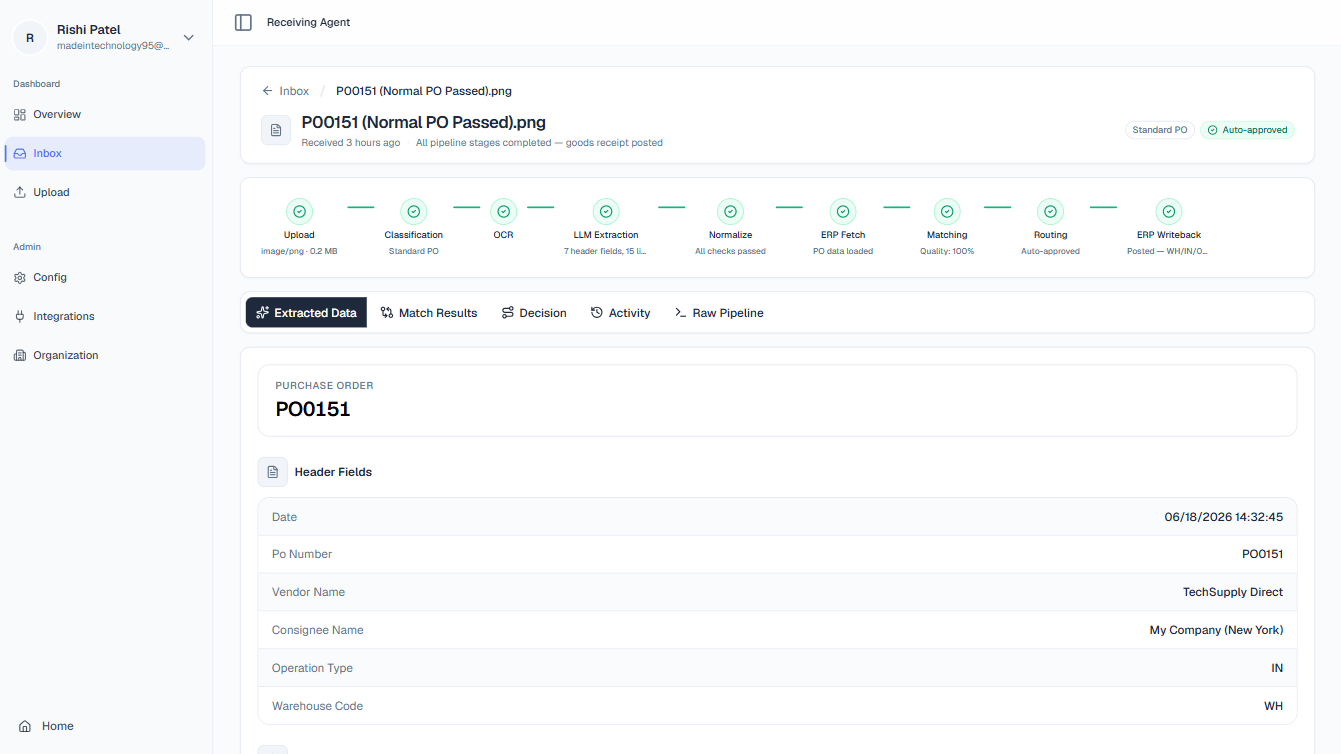
A horizontal stepper runs across the top of the Document Details page, showing every stage of the processing pipeline:
**Upload → Extract → Match → Validation → Action → Writeback**
Each stage node displays whether it completed successfully, is currently running, or encountered an error. If the document is still being processed, the timeline auto-refreshes every two seconds so you always see live progress without reloading the page. Click any completed stage node to jump directly to that stage's data in the **Raw Pipeline** tab.
 ## The Five Tabs
The Extracted Data tab shows exactly what the AI read from the physical or digital document: no comparison, no interpretation, just the raw output of the extraction stage.
**Header fields** include information like PO Number, Vendor Name, Invoice Date, Ship Date, and any other top-level fields found on the document.
**Line items** are displayed in a table with one row per product line: item description, part number, quantity, unit of measure, and unit price where available.
Think of this tab as the answer to: *"What does the paper actually say?"* If a value looks wrong here, the AI misread the source document, you can correct it in the **Match Results** tab.
The Match Results tab shows a side-by-side comparison of what the AI extracted from the document (left column) versus what your ERP has on record for the matched purchase order (right column).
Lines where the values agree are displayed normally. Lines where there is a discrepancy, for example, the packing slip says quantity 50 but the PO shows quantity 40, are **highlighted** in amber to draw your attention immediately.
**When the document status is "Needs Review"**, the extracted-value fields become editable. Click any highlighted quantity or field value to enter a correction. Use this to fix genuine AI misreads (for example, the AI read "50" as SO instead of five-zero) or to accept a partial shipment amount that differs from the PO. All corrections are **staged** and do not take effect until you click **Approve**. If you have made edits, the Approve button label updates to **Approve (X edited)** so you always know corrections are pending.
The Decision tab explains the routing logic the AI applied to this document, specifically, why it was sent to human review rather than auto-approved.
The tab displays the rule or condition that triggered the escalation, in plain language. For example:
* *"Routed to Human Review because Line 2 quantity (50) exceeds ERP ordered quantity (40)."*
* *"Routed to Human Review because extraction confidence for PO Number field is below threshold (62%)."*
* *"No matching purchase order found for vendor SKU 1042-B."*
Reading this tab before touching the Match Results tab helps you understand what to look for and whether the discrepancy is a data-entry issue, a genuine partial shipment, or an AI extraction error.
The Activity tab is a full, timestamped audit trail for the document. Every significant event is recorded here in chronological order, including:
* When the document was uploaded and by whom
* When each pipeline stage (extraction, matching, validation) completed
* When the ERP was queried for the matching purchase order
* Any inline corrections made during review, and by whom
* When an approve or reject decision was made, by whom, and (for rejections) the reason selected
This log is immutable, entries cannot be edited or deleted. Use the Activity tab to answer compliance or audit questions without relying on external records.
The Raw Pipeline tab displays the full JSON output produced by each stage of the AI pipeline. It is intended for technical users: developers, integration engineers, or administrators who need to debug unexpected extraction results or validate pipeline behavior.
Each pipeline stage has its own expandable JSON block. You can also click a stage node in the **Pipeline Timeline** at the top of the page to jump directly to that stage's JSON output within this tab.
If you are not troubleshooting a technical issue, you can safely ignore this tab.
## Approving a Document
Use the steps below when the AI has routed a document to **Needs Review** and you have determined that it should be accepted and posted to your ERP.
## The Five Tabs
The Extracted Data tab shows exactly what the AI read from the physical or digital document: no comparison, no interpretation, just the raw output of the extraction stage.
**Header fields** include information like PO Number, Vendor Name, Invoice Date, Ship Date, and any other top-level fields found on the document.
**Line items** are displayed in a table with one row per product line: item description, part number, quantity, unit of measure, and unit price where available.
Think of this tab as the answer to: *"What does the paper actually say?"* If a value looks wrong here, the AI misread the source document, you can correct it in the **Match Results** tab.
The Match Results tab shows a side-by-side comparison of what the AI extracted from the document (left column) versus what your ERP has on record for the matched purchase order (right column).
Lines where the values agree are displayed normally. Lines where there is a discrepancy, for example, the packing slip says quantity 50 but the PO shows quantity 40, are **highlighted** in amber to draw your attention immediately.
**When the document status is "Needs Review"**, the extracted-value fields become editable. Click any highlighted quantity or field value to enter a correction. Use this to fix genuine AI misreads (for example, the AI read "50" as SO instead of five-zero) or to accept a partial shipment amount that differs from the PO. All corrections are **staged** and do not take effect until you click **Approve**. If you have made edits, the Approve button label updates to **Approve (X edited)** so you always know corrections are pending.
The Decision tab explains the routing logic the AI applied to this document, specifically, why it was sent to human review rather than auto-approved.
The tab displays the rule or condition that triggered the escalation, in plain language. For example:
* *"Routed to Human Review because Line 2 quantity (50) exceeds ERP ordered quantity (40)."*
* *"Routed to Human Review because extraction confidence for PO Number field is below threshold (62%)."*
* *"No matching purchase order found for vendor SKU 1042-B."*
Reading this tab before touching the Match Results tab helps you understand what to look for and whether the discrepancy is a data-entry issue, a genuine partial shipment, or an AI extraction error.
The Activity tab is a full, timestamped audit trail for the document. Every significant event is recorded here in chronological order, including:
* When the document was uploaded and by whom
* When each pipeline stage (extraction, matching, validation) completed
* When the ERP was queried for the matching purchase order
* Any inline corrections made during review, and by whom
* When an approve or reject decision was made, by whom, and (for rejections) the reason selected
This log is immutable, entries cannot be edited or deleted. Use the Activity tab to answer compliance or audit questions without relying on external records.
The Raw Pipeline tab displays the full JSON output produced by each stage of the AI pipeline. It is intended for technical users: developers, integration engineers, or administrators who need to debug unexpected extraction results or validate pipeline behavior.
Each pipeline stage has its own expandable JSON block. You can also click a stage node in the **Pipeline Timeline** at the top of the page to jump directly to that stage's JSON output within this tab.
If you are not troubleshooting a technical issue, you can safely ignore this tab.
## Approving a Document
Use the steps below when the AI has routed a document to **Needs Review** and you have determined that it should be accepted and posted to your ERP.
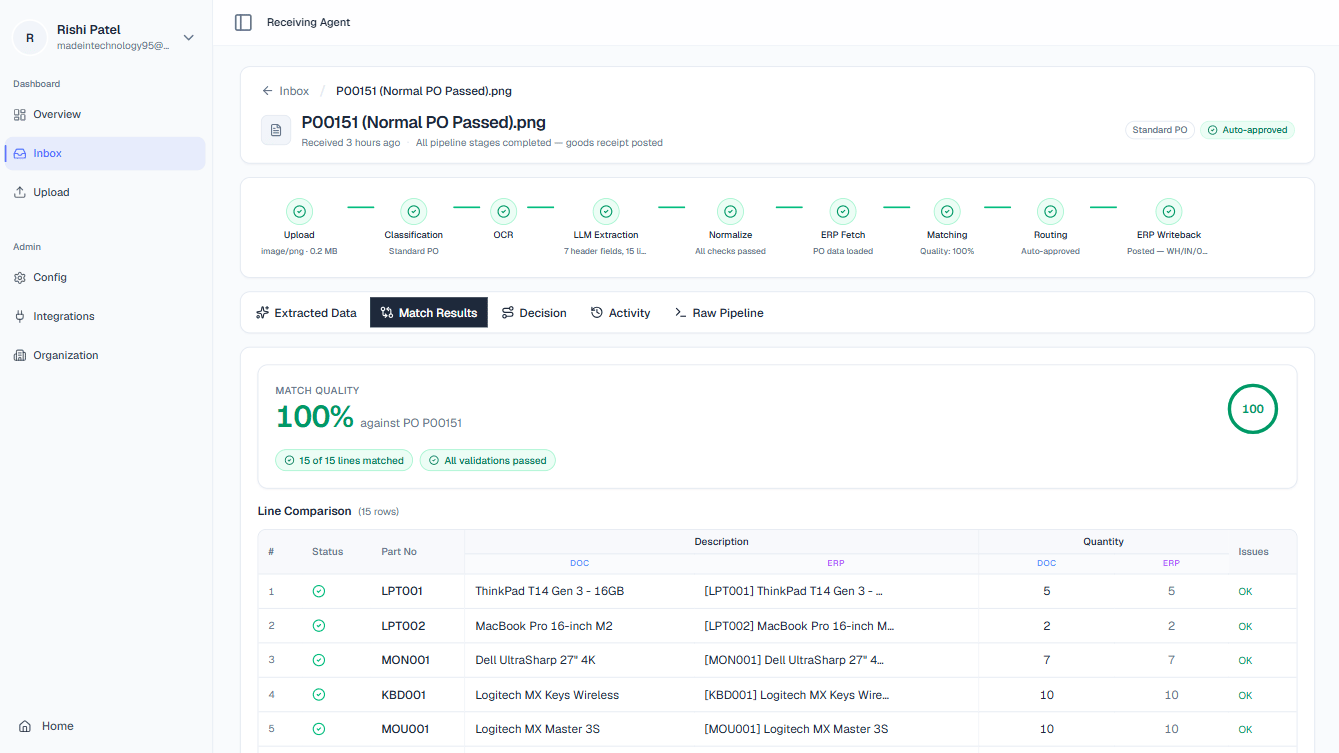 Open the **Match Results** tab. Scan the highlighted lines to understand where the extracted values differ from ERP expectations. Cross-reference with the **Decision** tab if you are unsure why the document was flagged.
If a discrepancy is the result of the AI misreading the source document, for example, it extracted a quantity of 5 when the slip clearly shows 50, click the field to make it editable and type the correct value. You can correct as many fields as needed. The **Approve** button will display **Approve (X edited)** to confirm your changes are staged.
If the discrepancy reflects a genuine partial shipment or a vendor variance that you are accepting, leave the extracted values as-is and proceed.
The **Approve** button is disabled if any required fields (such as PO Number or total quantity) are blank. If the button appears greyed out, check the Extracted Data and Match Results tabs for empty required fields and fill them in before proceeding.
Click **Approve** (or **Approve (X edited)** if you made corrections). The platform immediately posts a goods receipt to your ERP using the confirmed values. The document status updates to **Approved**, the Pipeline Timeline advances to **Writeback**, and the event is logged in the **Activity** tab with your name and timestamp.
## Rejecting a Document
Use the steps below when a document cannot be accepted, for example, it is illegible, is not a packing slip, or contains a discrepancy severe enough that the shipment should not be received.
Click the **Reject** button on the Document Details page. A confirmation dialog will appear.
Choose one of the following reasons from the dropdown:
* **Illegible Document** — the scan or photo quality is too poor to process reliably
* **Not a Packing Slip** — the document is an invoice, bill of lading, or other non-qualifying document type
* **Duplicate** — this document has already been received and processed under a different upload
* **Critical Mismatch** — the discrepancy between the packing slip and the PO is too significant to accept (e.g., wrong vendor, completely different items)
Click **Confirm Reject** in the dialog. The document is permanently marked **Rejected**, removed from the active review queue, and the decision is recorded in the **Activity** tab with your name, timestamp, and reason.
Rejection is **permanent**. Once a document is marked Rejected, it cannot be moved back to review or approved. If you reject a document in error, you will need to re-upload the original file to create a new document record.
Before touching any fields in **Match Results**, open the **Decision** tab first. The plain-language explanation of why the AI escalated this document tells you exactly which line and field to focus on — saving you from scanning every row of a long line-item table to find the discrepancy.
Open the **Match Results** tab. Scan the highlighted lines to understand where the extracted values differ from ERP expectations. Cross-reference with the **Decision** tab if you are unsure why the document was flagged.
If a discrepancy is the result of the AI misreading the source document, for example, it extracted a quantity of 5 when the slip clearly shows 50, click the field to make it editable and type the correct value. You can correct as many fields as needed. The **Approve** button will display **Approve (X edited)** to confirm your changes are staged.
If the discrepancy reflects a genuine partial shipment or a vendor variance that you are accepting, leave the extracted values as-is and proceed.
The **Approve** button is disabled if any required fields (such as PO Number or total quantity) are blank. If the button appears greyed out, check the Extracted Data and Match Results tabs for empty required fields and fill them in before proceeding.
Click **Approve** (or **Approve (X edited)** if you made corrections). The platform immediately posts a goods receipt to your ERP using the confirmed values. The document status updates to **Approved**, the Pipeline Timeline advances to **Writeback**, and the event is logged in the **Activity** tab with your name and timestamp.
## Rejecting a Document
Use the steps below when a document cannot be accepted, for example, it is illegible, is not a packing slip, or contains a discrepancy severe enough that the shipment should not be received.
Click the **Reject** button on the Document Details page. A confirmation dialog will appear.
Choose one of the following reasons from the dropdown:
* **Illegible Document** — the scan or photo quality is too poor to process reliably
* **Not a Packing Slip** — the document is an invoice, bill of lading, or other non-qualifying document type
* **Duplicate** — this document has already been received and processed under a different upload
* **Critical Mismatch** — the discrepancy between the packing slip and the PO is too significant to accept (e.g., wrong vendor, completely different items)
Click **Confirm Reject** in the dialog. The document is permanently marked **Rejected**, removed from the active review queue, and the decision is recorded in the **Activity** tab with your name, timestamp, and reason.
Rejection is **permanent**. Once a document is marked Rejected, it cannot be moved back to review or approved. If you reject a document in error, you will need to re-upload the original file to create a new document record.
Before touching any fields in **Match Results**, open the **Decision** tab first. The plain-language explanation of why the AI escalated this document tells you exactly which line and field to focus on — saving you from scanning every row of a long line-item table to find the discrepancy.